Back in 2020, the vSphere UI was the only way to create your own custom Virtual Machine Classes, there was not a vSphere API and while you can directly connect to vSphere Supervisor Control Plane, it was not officially supported 🙂
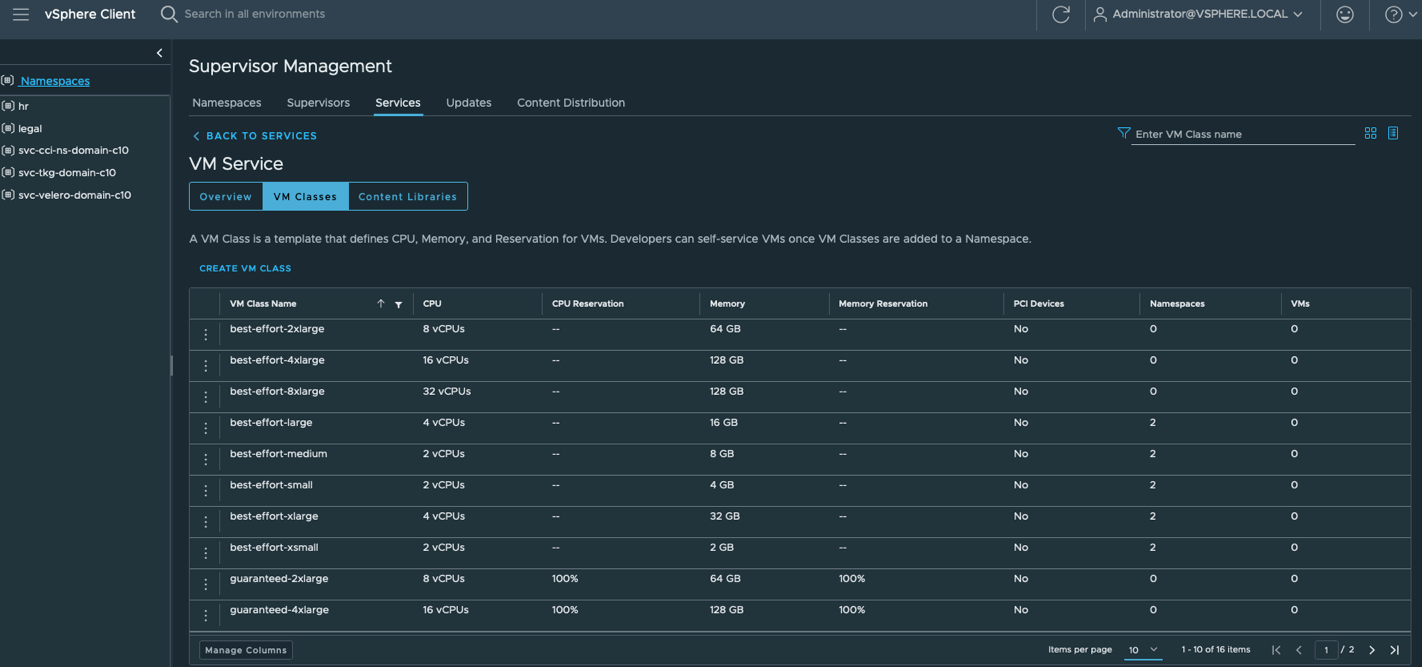
With the release of vSphere 7.0 Update 2, the vSphere Automation REST API has been enhanced to include APIs for managing VM Classes.
A question recently came up about automating custom VM Classes. While the user referenced my earlier blog post, I realized I had not revisited this topic using the updated vSphere REST API. This was a great opportunity to provide a working example and timely, as I had just got access to Cursor.
To demonstrate the use of the vSphere Automation REST API for managing VM Classes, I have created ... or rather, I prompted Cursor to create me a PowerShell script NamespaceVirtualMachineClass.ps1 that contains the following function definitions:
- Connect-VSphereAutomationSession
- Disconnect-VSphereAutomationSession
- Get-NamespaceVirtualMachineClass
- New-NamespaceVirtualMachineClass
- Remove-NamespaceVirtualMachineClass
After downloading the PowerShell script, you will need to source the file by running the following command:
. .\NamespaceVirtualMachineClass.ps1
Login to vCenter Server REST API endpoint by providing the FQDN of your vCenter Server and valid credentials
$session = Connect-VSphereAutomationSession -Server sfo-m01-vc01.sfo.rainpole.io -Credential (Get-Credential)

To list all VM Classes, run the following command and provide the $session variable:
Get-NamespaceVirtualMachineClass -Session $session | ft
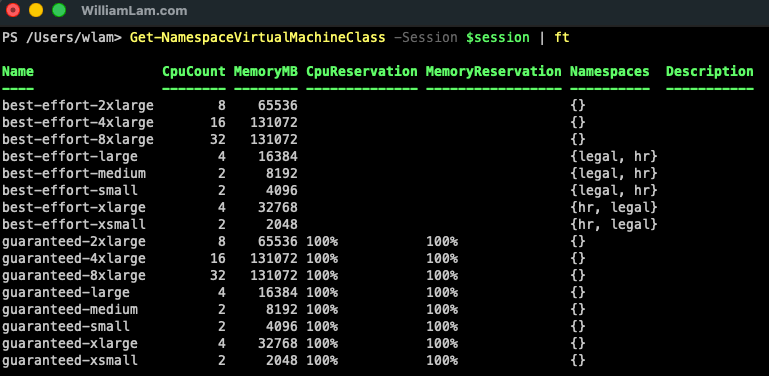
To create new custom VM Classes, run the following example commands and provide the $session variable:
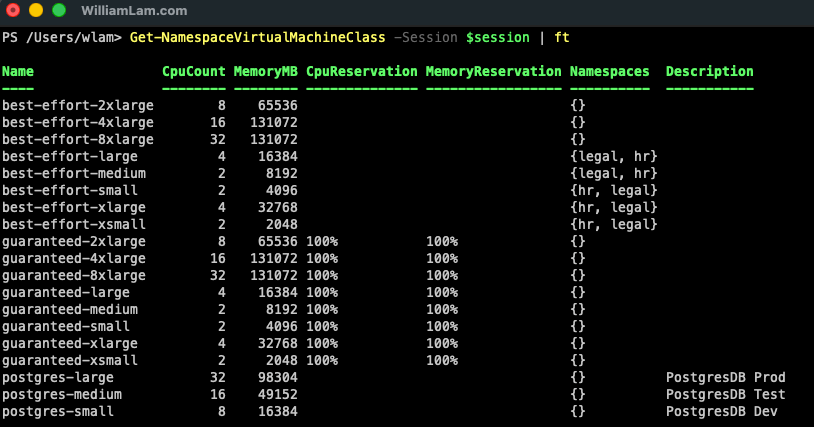
New-NamespaceVirtualMachineClass -Session $session -CpuCount 32 -MemoryMB 98304 -Name postgres-large -Description "PostgresDB Prod"
New-NamespaceVirtualMachineClass -Session $session -CpuCount 16 -MemoryMB 49152 -Name postgres-medium -Description "PostgresDB Test"
New-NamespaceVirtualMachineClass -Session $session -CpuCount 8 -MemoryMB 16384 -Name postgres-small -Description "PostgresDB Dev"

If we re-run the Get-NamespaceVirtualMachineClass, we can see our newly created custom VM Classes.
To remove VM Classes, run the following command along with the VM Class name and provide the $session variable:
Remove-NamespaceVirtualMachineClass -Session $session -Name postgres-large
Remove-NamespaceVirtualMachineClass -Session $session -Name postgres-medium
Remove-NamespaceVirtualMachineClass -Session $session -Name postgres-small
The VM Classes have been enhanced further with the release of vSphere 9.0 and you now have the ability to add additional devices and
Thanks for the comment!