WilliamLam.com

  • About
    • About
    • Privacy
  • VMware Cloud Foundation
    • VMware Cloud Foundation 9.1
    • VMware Cloud Foundation 9.0
  • VKS
  • Homelab
    • Hardware Options
    • Hardware Reviews
    • Lab Deployment Scripts
    • Nested Virtualization
    • Homelab Podcasts
  • VMware Nostalgia
  • Apple

Search Results for: vmc

Retrieving network statistics on VMware Cloud on AWS using NSX-T Policy API

07.16.2020 by William Lam // 1 Comment

One question that has come up lately from VMware Cloud on AWS customers is to understand their network traffic usage, especially as it pertains to traffic that exit or egress their SDDC. There are a number of graphical tools that can be used today to get insights into this information, one is the popular vRealize Network Insight Cloud solution which many of our VMware Cloud on AWS customers are taking advantage of to not only understand traffic usage and flow data history but is also instrumental in aiding customers when planning workload migrations from their on-premises datacenter to VMware Cloud on AWS.

While researching this topic, I also came to learn that this information can be retrieved using the NSX-T Policy API which is available to all customers to use. We are going to be leveraging the Tier-0 statistics interface API from NSX-T which will give us both transmit and receive stats on all supported interfaces. From the diagram below, we can see the interfaces that are applicable to VMware Cloud on AWS is the Internet interface which includes VPN traffic, VPC interface which includes traffic going to Linked VPC and Direct Connect interface which includes traffic when using AWS Direct Connect.

NSX-T Topology in VMware Cloud on AWS

As you might expect, these exact same three interface types is then represented as logical interfaces within the NSX-T Policy API which uses the following IDs:

  • cross-vpc
  • public
  • direct-connect

Note: Statistics on the Direct Connect interface will also include traffic if you are using the new VMware Transit Connect with AWS Transit Gateway feature.

These interface can be discovered by performing a GET on /policy/api/v1/infra/tier-0s/vmc/locale-services/default/interfaces and then you would then identify the two NSX-T Edge (Active/Passive) and construct the T0 URL to retrieve the statistics. I will not bore you with the details and have implemented this as a new PowerShell function called Get-NSXTT0Stats and for those interested in the implementation, please see the code here.

Note: For those wanting to see the full NSX-T Policy REST URLs, simply append -Troubleshoot flag and that will output additional information on how I am retrieving the various pieces of information required to call into the T0 Stats API.
[Read more...]

Categories // NSX, VMware Cloud on AWS Tags // NSX-T, VMware Cloud on AWS

Quick Tip - Encoding emojis in a Microsoft Teams message using O365 API

07.13.2020 by William Lam // Leave a Comment

One easy way to integrate with Microsoft Teams is to use an incoming webhook which can be configured on a per-channel basis. While working on creating some new PowerShell functions for the VMware Event Broker Appliance (VEBA), I was stuck trying to figure out how to properly encode an emoji icon into the MessageCard type for sending a message to a teams channel.

After a bit of searching and some trial/error, I finally found that you needed to use the emoji hex code with the following format:

&#x<EMOJI-HEX-CODE>;

I used this site here to find the emoji to hex code translation. In addition, I also found that the emojis will only render when used in either the activityTitle or text property of the MessageCard. I was initially trying use this within the facts property which does not work.

Here is a working PowerShell example on constructing the the MessageCard JSON which utilizes emojis:

$teamsMessage = [PSCustomObject][Ordered]@{
    "@type"      = "MessageCard"
    "@context"   = "http://schema.org/extensions"
    "themeColor" = '0078D7'
    "summary"      = "VMC SDDC Deleted"
    "sections"   = @(
        @{
            "activityTitle" = "&#x1F6A8; **VMC SDDC Deleted** &#x1F6A8;";
            "activitySubtitle" = "In VMC-Customer[0] Organization";
            "activityImage" = "https://blogs.vmware.com/vsphere/files/2019/07/Icon-2019-VMWonAWS-Primary-354-x-256.png"
            "facts" = @(
                @{
                    "name" = "SDDC:";
                    "value" = "M11-SDDC";
                },
                @{
                    "name" = "Date:";
                    "value" = "2020-07-12T11:20:03.364000Z";
                },
                @{
                    "name" = "User:";
                    "value" = "*protected email*";
                }
            );
            "markdown" = $true;
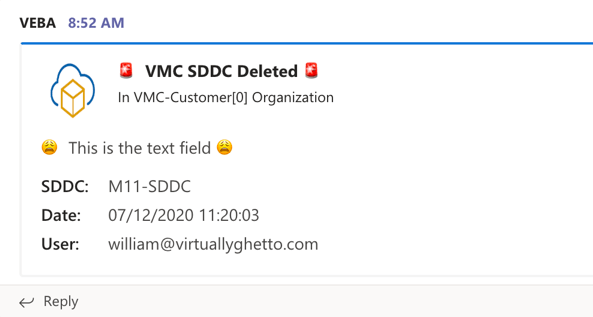
            "text" = "&#x1F629; This is the text field &#x1F629;";
        }
    )
}

$body = $teamsMessage | ConvertTo-Json -Depth 5
Invoke-WebRequest -Uri $teamsWebhookURL  -Method POST -ContentType "application/json" -Body $body | Out-Null

Here is what the rendered Microsoft Teams message will looks like posting to the webhook:

Categories // Uncategorized Tags // Emojis, Microsoft Teams

Custom notification and automation based on host failure in VMware Cloud on AWS

07.09.2020 by William Lam // Leave a Comment

Physical hardware failure is inevitable, this is true whether it is running in your on-premises datacenter or in the Cloud like VMware Cloud on AWS. Although vSphere HA will automatically restart all affected VMs after detecting a host failure, there is usually additional activities that must be performed by a customer such as notifying all impacted application owners and even creating an incident ticket for hardware replacement.

With VMware Cloud on AWS, the hardware replacement is done automatically for you but the downstream activity of notifying application owners to verify the application is functional is still managed by the customer. There are many ways in how customers can manage such incidents and one solution that I am a huge advocate of is taking advantage of the powerful vCenter Server Events, which has over 1700+ events, not to mention any of the 2nd/3rd party events.

When an ESXi host fails, the com.vmware.vc.HA.DasHostFailedEvent event will be generated which contains all the relavent information related to the host failure including the specific hostname/IP, when the incident occurred and details about the vSphere Cluster and Datacenter is also provided. This information is visible using the vSphere UI but it can also be programmatically retrieved using the vSphere API, which is how the vSphere UI renders this information.

Note: Everything described in this blog post including the VEBA example is applicable to any environment that contains vCenter Server and is not limited to just VMware Cloud on AWS.

[Read more...]

Categories // VMware Cloud on AWS Tags // VEBA, VMC, VMware Cloud on AWS, VMware Event Broker Appliance

  • « Previous Page
  • 1
  • …
  • 29
  • 30
  • 31
  • 32
  • 33
  • …
  • 55
  • Next Page »

Search

Thank Author

Author

William is Distinguished Platform Engineering Architect in the VMware Cloud Foundation (VCF) Division at Broadcom. His primary focus is helping customers and partners build, run and operate a modern Private Cloud using the VMware Cloud Foundation (VCF) platform.

Connect

  • Bluesky
  • Email
  • GitHub
  • LinkedIn
  • Reddit
  • RSS
  • Twitter
  • Vimeo

Recent

  • Configuring OIDC with PKCE in Keycloak for VCF Private AI Services 08/26/2026
  • VCF 9.1 - Understanding VCF Converge & Import Scenarios for vCenter Server Without NSX 08/24/2026
  • VCF 9.1 - Configuring Harbor to use VCF Identity Broker (IDB) for External Identity Federation 08/19/2026
  • Quick Tip: The Fastest Way to Clear Partitions for ESX Reinstallation 08/15/2026
  • Quick Tip: Reducing High CPU Utilization in VCF Automation (VCFA) on AMD Zen4/Zen5 CPUs 08/12/2026
Privacy & Cookies: This site uses cookies. By continuing to use this website, you agree to their use.

To find out more, including how to control cookies, see here: Cookie Policy

Copyright WilliamLam.com © 2026

Loading Comments...