WilliamLam.com

  • About
    • About
    • Privacy
  • VMware Cloud Foundation
    • VMware Cloud Foundation 9.1
    • VMware Cloud Foundation 9.0
  • VKS
  • Homelab
    • Hardware Options
    • Hardware Reviews
    • Lab Deployment Scripts
    • Nested Virtualization
    • Homelab Podcasts
  • VMware Nostalgia
  • Apple

Unable to apply VSAN VM Storage Policy on NSX Controller/Edge VMs?

01.07.2015 by William Lam // 6 Comments

This post was inspired by a recent Twitter conversation with Joep Piscaer who ran into an interesting challenge with VSAN and NSX.

I want to apply a VSAN VM Storage Policy to a NSX Controller, but I’m getting an "The method is disabled by ‘vShield_SVM’” error. Any ideas?

— Joep Piscaer (@jpiscaer) December 31, 2014

The issue that Joep encountered was not being able to apply a VSAN VM Storage Policy onto an NSX Controller VM which resided on a VSAN Datastore. Below is a screenshot of the error message "The method is disabled by vShield_SVM" if you tried to apply the VM Storage Policy.

disabled_methods_on_vms_1
The reason Joep is seeing this error is because the NSX Controller VM is a special "Service VM" that is being managed by a specific solution, in this case it is VMware NSX. To ensure that users do not accidentally modify these "Service VMs", certain set of functionality has been disabled on these VMs from regular users. Any configuration changes that are required are initiated through the solution itself which has full administrative access to these VMs. This issue is actually not specific to the NSX Controller VMs but also applies to the NSX Edge VMs: ESR (Edge Service Router) and DLR (Distributed Logical Router).

In fact, this applies to any "Service VMs" which are being managed by a VMware Solution or 3rd party Solution. You will notice that you will not be able to edit these VMs like you would normally on other VMs. One suggestion from a community member was to check out the VMware KB 2008957 which has users manually tweaking the VCDB, which I am not a big fan of if I can help it. If you want to know why I do not recommend this, check out this post here where kittens might get harmed. Now, getting back to Joep's request, is there a solution for him? After all, his request is a valid one where he has deployed an NSX Controller VM on a VSAN Datastore and wishes to apply a specific VSAN VM Storage Policy.

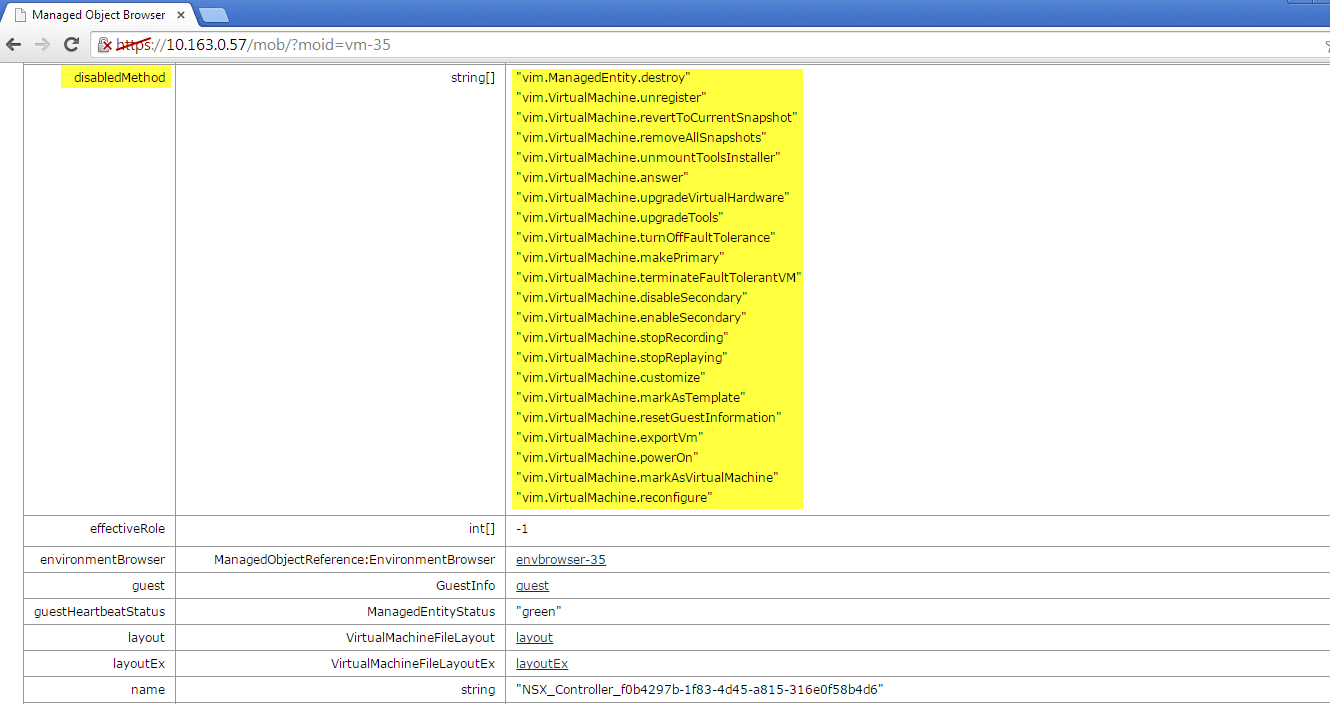
Luckily, there is cleaner work around that does not involve messing around with the VCDB and crafting ugly SQL queries. The way these "methods" or operations are disabled on a particular set of VMs is through the use of a private vSphere API available through vCenter Server called disableMethods. You can actually view the list of disableMethods by viewing a particular VM using the vSphere MOB under config->disableMethod property as seen in the screenshot below.

disabled_methods_on_vms_2
The list of disableMethods map to the specific vSphere API calls for a VM and in the case of modifying a VM which includes applying a VM Storage Policy, the method that is used is is called the ReconfigVM_Task which we can see in the screenshot mapping to vim.VirtualMachine.reconfigure. If we want to be able to apply a VM Storage Policy, we simply just need to temporarily remove this particular operation from the disabbleMethods list.

Here are the instructions for enabling ReconfigVM_Task method:

Step 1 - You will need to find the MoRef (Managed Object Reference) ID of the VM that you wish to enable the method on. You can do this by either browsing through the vSphere MOB, using this vSphere SDK for Perl script or this PowerCLI snippet:

Get-VM -Name [VM-NAME] | ft -Property Id

Step 2 - Open a web browser to the following URL:

https://[VC-IP]/mob/?moid=AuthorizationManager&method=enableMethods

Step 3 - You will need to replace the following two parameters (make sure to replace the VM MoRef ID with the one you found in Step 1):

parameter value
entity <entity type="ManagedEntity" xsi:type="ManagedObjectReference">vm-35</entity>
method <method>ReconfigVM_Task</method>

Step 4 - Once you have updated fields as shown in the screenshot below, to execute the API call you just need to click on the "Invoke Method" link on the bottom right.

disabled_methods_on_vms_3
If everything was successful, you should see some output from the operation listing the methods that are still currently disabled. You can also confirm that everything is working by refreshing the vSphere Web Client or if you are using the vSphere C# Client, the "Edit Settings" option should now be available. Lastly, if I now apply a VSAN VM Storage Policy, I will no longer get the error and as you can see from the screenshot below, I now have successfully applied my "VSAN-Platinum-VM-Storage-Policy" for my NSX Controller VM. I would strongly recommend that you re-enable the original disable method by following the instructions below.

disabled_methods_on_vms_4

Here are the instructions for disabling ReconfigVM_Task method:

Step 1 - You will need to find the MoRef (Managed Object Reference) ID of the VM that you wish to enable the method on. You can do this by following Step 1 from the enable instructions

Step 2 - Open a web browser to the following URL:

https://[VC-IP]/mob/?moid=AuthorizationManager&method=disableMethods

Step 3 - You will need to replace the following three parameters (make sure to replace the VM MoRef ID with the one you found in Step 1 and any random number works for sourceId property):

parameter value
entity <entity type="ManagedEntity" xsi:type="ManagedObjectReference">vm-35</entity>
method <DisabledMethodRequest><method>ReconfigVM_Task</method><DisabledMethodRequest>
sourceId 1234

Step 4 - Once you have updated fields as shown in the screenshot below, to execute the API call you just need to click on the "Invoke Method" link on the bottom right.

disabled_methods_on_vms_5
If everything was successful, you should see a void output and if you go to your vSphere Web/C# Client, you should see that the "Edit Settings" option is now disabled again for this VM. Though applying a VSAN VM Storage Policy is pretty trivial, there are some additional things to be aware of when working with special "Service VMs" like the NSX Controller. Hopefully we can improve this workflow in the future and provide for a better user experience but in the mean time, you can use this workaround.

Categories // ESXi, NSX, VSAN Tags // disableMethods, enableMethods, mob, NSX, vm storage policy, vm storage profile, VSAN

Community stories of VMware & Apple OS X in Production: Part 10

12.19.2014 by William Lam // 2 Comments

Company: Fitstar
Software: VMware vSphere
Hardware: Apple Mac Mini

[William] - Hi Clay, thanks for taking some time out of your schedule this afternoon to talk with us regarding one of the projects are you are currently working on. Before we get started, can you quickly introduce yourself and your current role within VMware?

[Clay] - Good morning and thanks for having me! My name is Clay Alvord, and I am a Senior Prototype Engineer, here at VMware. I work with hardware vendors as they develop new equipment, and get it in the hands of the developers here. It allows our engineers to get early access to pre-release gear, in the hope that as the equipment comes to market, it's on our HCL at the same time. It also allows us to help debug the hardware as its developed, so we don't hit any critical surprises after release.

[William] - Thanks Clay, very cool role! So, I hear you have been working closely with a new startup who has built a really interesting design involving VMware & Mac Mini’s? Could you provide us some more details around the design and the type of application/workload the customer has planned for this infrastructure?

[Clay] - Thats exactly right. FitStar deals with a lot of high resolution video, so their storage requirements are above average for a company their size. Most of their servers live in Amazon's EC2 cloud, and so they are already heavy users of Amazon's services. Amazon has a product called Amazon Storage Gateway (ASG). ASG allows for local storage to be mirrored to EC2, or have the your most commonly access EC2 files cached locally.

What I have designed is a local storage array, with a an Apple Mac Mini running ESXi 5.5 and Amazon's Gateway (local) storage. This gives the users the speed of local storage, with the safety-net of having their data in EC2 at the same time.

[William] - How many Mac Mini’s are they currently running on-premises and what hardware configuration did the customer choose for their specific application requirements? Were there any constraints that you had faced due to the limited resources the Mac Mini’s provided?

[Clay] - They have 1 Mac Mini, and 1 Dell Poweredge. The Mac was a hard requirement, because the original design required us to run OSX server.

We opted for the Mac Mini as it fit the budget better, when compared to a Mac Pro. The Mac Mini is a Late 2012 and has a 3Ghz cpu, with 16GB of ram. Our biggest constraint is the memory in the system. We run 2 storage gateway VM's on the dell. Each one requiring 8GB of memory. We could not have it all on the Mac Mini as the Mini only supports 16GB in total and does not have room for future growth.

The Mac Mini has 3 Mac OS X VMs. 2 of them are OS X 10.10, each running OS X Server. One for dedicated Xcode buildbot, and app caching. The other for Time Machine services. The 3rd VM is running Mac OS X 10.9 Server and is purely for file sharing.

Here is a picture of Fitstar's setup:

fitstar
Here are some additional physical and logical diagrams of the setup:

fitstart-diagram2 fitstart-diagram3
[William] - How much storage is currently being managed today and how is that presented to the VMs? Do they have plans on increasing either the storage or compute platforms as they grow?

[Clay] - The storage array has 2 RAID-6 luns, serving a total of 20TB to the Dell host over iSCSI. The host then breaks up the storage into 1TB disks that are then attached the two ASG VMs. The VMs, mirror the data to Amazon and then present new iSCSI targets to the Mac Mini host. From there we use Raw Device Mappings to attach the file server and backup server.

[William] - This looks like a really cool solution that you’ve architected with the customer. For a startup, I was kind of surprised to hear they went with vSphere versus going down an open source route and potentially using some type of Cloud Services? Do you know what the motivation was that lead the customer to choose vSphere and running an on-premise solution?

[Clay] - The motivation of going ESXi over an alternative solution had several factors. The first was Fitstar's familiarity with VMware, as well as my own. The second was this solution is the backbone of their company and they needed a world class solution that has not only a strong support system, but a HUGE community behind it. Lastly, it was the hard requirement to use ASG. Using ASG allows for the volumes to be directly mounted in a EC2 instance in case of an emergency. Amazon also states that the ASG vm's are optimized for ESX and Hyper V.

[William] - That is great to hear that even for startups, having an enterprise and highly available platform such as vSphere is critical to their business. Were there any challenges while designing and deploying this infrastructure, either from a deployment or operational point of view?

[Clay] - Definitely. This project was originally designed with just file services in mind. The original POC was a local storage array, and the Mac Mini. The Mini would run a ASG and 1 OS X VM.

When it was decided that we needed Xcode, Caching and Time Machine services, we opted for a dedicated VM for each of theses. The reason is that if there were issues or heavy load with any of them, it would not affect the others.

Some of the other challenges we had was getting iSCSI to play well with Mac OS X. We were planning on having the iSCSI connections go directly to the VMs, and bypass ESXi, but 3rd party drivers don't work with Amazon's version of iSCSI. As a result, we now connect to the hypervisor, and use raw mappings to the VMs. We opted for raw mappings so that if we mount a volume in EC2, it sees a HFS+ disk, not a VMFS one with HFS inside.

We also had trouble getting the OS X server services to work on virtualized hardware. ultimately we adjusted the vm parameters to expose the hardware ID's to the vm, and so OS X thinks it running on physical hardware.

We are still working on plenty of tweaks to the system. I have seen a  OS X panic, and kernel logs point at VMware Tools as the culprit. We have filed a bug for this. We also have an issue that the nics in the Mac Mini are e1000, not e1000e. This occasionally leads to a PSOD. The work around we plan on introducing is Thunderbolt to ethernet adapters.

The last ESXi related hurdle is that in order for the VMs on the Mac Mini to auto start, the Dell and AGS VMs must be online, and the Mini has to have already scanned its storage adapters. So in the event of a power outage, when everything powers up, you must rescan storage on the mini, after the Dell is online, then power up the Mini's VM's. We have installed a battery backup unit, and are in the middle of automating the scan and power up of the Mini's VMs.

[William] - Clay, thank you very much for taking the time and sharing with us some of the innovative things our customers are doing with Apple and our vSphere platform. I really enjoy hearing about how our customers push our software to its limits and find new use cases that we had never thought about. Thanks again for sharing. Finally, before I let you go, do you have any words of advice or tips for other customers having similar requirements, especially those coming from a Startup? Any particular resources you recommend them checking out before getting started?

[Clay] - It was my pleasure. virtuallyGhetto has been a great resource for me in standing up the project. I have some tips and tricks related to this and some other things on my site www.geeksnthings.com as well.​

If you are interested in sharing your story with the community (can be completely anonymous) on how you use VMware and Mac OS X in Production, you can reach out to me here.

  • Community stories of VMware & Apple OS X in Production: Part 1
  • Community stories of VMware & Apple OS X in Production: Part 2
  • Community stories of VMware & Apple OS X in Production: Part 3
  • Community stories of VMware & Apple OS X in Production: Part 4
  • Community stories of VMware & Apple OS X in Production: Part 5
  • Community stories of VMware & Apple OS X in Production: Part 6
  • Community stories of VMware & Apple OS X in Production: Part 7
  • Community stories of VMware & Apple OS X in Production: Part 8
  • Community stories of VMware & Apple OS X in Production: Part 9
  • Community stories of VMware & Apple OS X in Production: Part 10

Categories // Apple, ESXi, vSphere Tags // amazon ec2, apple, AWS, ESXi, mac mini, osx, vSphere

How to quickly deploy new CoreOS Image w/VMware Tools on ESXi?

11.06.2014 by William Lam // 14 Comments

deploy-coreos-with-vmware-tools-on-esxi Thanks to a conversation I had this morning with a Twitter user @BOK, I learned that CoreOS has just recently published a new CoreOS Alpha Image (v490.0.0) that now includes the Open VMware Tools package. In addition, the new image also now uses the optimized VMXNET3 network adapter. From our chat, it looks like this update is not available in the insecure or VMware Fusion image and I can only guess that these images may eventually get deprecated or removed completely in favor for the newer VMware image which can both run on ESXi as well as hosted products like VMware Fusion/Workstation.

@BOK also shared with me a modified version of my script that I initially created to automate the deployment of CoreOS onto ESXi. The original workflow had to be slightly modified as the new image is only available as bz2 (bunzip2) and ESXi does not contain the bunzip2 utility. This means there are now two steps: first is to extract the VMDK and upload to ESXi datastore which is going to be done manually and you can run the script which will automatically convert the VMDK to the proper format and register the VM in ESXi.

I was thinking about how I could simplify this process, even though it is just a couple of extra commands, I always like to see how I can make something easier to consume and reducing the complexity if possible. I of course decided to create a new script called deploy_coreos_on_esxi2.sh which now runs outside of the ESXi Shell. The script requires a UNIX/Linux system that has the bunzip2 utility and will automatically download both the VMX and VMDK file, perform the extraction and then upload it to ESXi host using an HTTP API provided through the vSphere Datastore. Lastly, it auto-generates the configuration shell script that will run over SSH to the ESXi host (SSH is still required) which will perform the same set of operations as my previous script did.

Note: You will be prompted to enter the ESXi root password when it tries to run the script remotely on the ESXi Shell, there is a timeout for 120seconds in case you step away from the console.

Prior to running the script, you will need to edit the following 7 variables:

  • ESXi_HOST
  • ESXI_USERNAME
  • ESXI_PASSWORD
  • ESXI_DATASTORE
  • VM_NETWORK
  • VM_NAME

Here is a screenshot of running the script from my Mac OS X desktop:

install-core-os-with-vmware-tools-on-esxi-0
Once the CoreOS VM has fully booted, we can take a look at our vSphere Client and we should see that VMware Tools is in fact running and we can see the IP Address automatically being displayed in the UI:

install-core-os-with-vmware-tools-on-esxi-1
The really nice thing about having VMware Tools running in the CoreOS image, is that you can use VMware's Guest Operations API to be able to perform operations within the guest which are proxied through VMware Tools and can be quite handy, especially if networking is not available or you want to go through a single management interface such as using the vSphere API.

Categories // ESXi, vSphere Tags // container, coreos, Docker, ESXi, vSphere

  • « Previous Page
  • 1
  • …
  • 123
  • 124
  • 125
  • 126
  • 127
  • …
  • 154
  • Next Page »

Search

Thank Author

Author

William is Distinguished Platform Engineering Architect in the VMware Cloud Foundation (VCF) Division at Broadcom. His primary focus is helping customers and partners build, run and operate a modern Private Cloud using the VMware Cloud Foundation (VCF) platform.

Connect

  • Bluesky
  • Email
  • GitHub
  • LinkedIn
  • Reddit
  • RSS
  • Twitter
  • Vimeo

Recent

  • VCF 9.1 - Configuring Harbor to use VCF Identity Broker (IDB) for External Identity Federation 08/19/2026
  • Quick Tip: The Fastest Way to Clear Partitions for ESX Reinstallation 08/15/2026
  • Quick Tip: Reducing High CPU Utilization in VCF Automation (VCFA) on AMD Zen4/Zen5 CPUs 08/12/2026
  • VCF 9.1 - Quick Tip: Optimized Workflow for Configuring Distributed Transit Gateway (DTGW) with NSX Virtual Network Appliance (VNA) 08/11/2026
  • Quick Tip: Selective ESX Host Patching in VCF 9.1 08/10/2026
Privacy & Cookies: This site uses cookies. By continuing to use this website, you agree to their use.

To find out more, including how to control cookies, see here: Cookie Policy

Copyright WilliamLam.com © 2026

Loading Comments...