WilliamLam.com

  • About
    • About
    • Privacy
  • VMware Cloud Foundation
    • VMware Cloud Foundation 9.1
    • VMware Cloud Foundation 9.0
  • VKS
  • Homelab
    • Hardware Options
    • Hardware Reviews
    • Lab Deployment Scripts
    • Nested Virtualization
    • Homelab Podcasts
  • VMware Nostalgia
  • Apple

An update on how to retrieve useful information from a vSphere login?

11.07.2016 by William Lam // 4 Comments

There was an internal Socialcast question today in which the answer could be found in my how to identify the origin of a vSphere login article. After responding to the question, I had realized that I wrote that article almost 6 years ago and what is even more crazy is that it is still very applicable today. The article explains how you can identify a vSphere login by enabling the "trivial" logging option in vCenter Server (extremely verbose, so please use with caution). Once enabled, you can go through the vpxd.log file and find things about a user login such as the the IP Address of the client as well as the type of vSphere interface they had used to login to whether that is using the vSphere C# Client or PowerCLI for example. Although this extracted information can be very useful, the process to retrieve this is not very ideal, especially having to increase your vCenter Server logging verbosity to the extreme which can force other more critical log events to roll over.

Given that this article written back when vSphere 4.1 was still the current release, I figure I should give the process another look to see if there was a better method in retrieving this information. While quickly browsing around the SessionManager object and specifically the UserSession property, I noticed there have been quite a few enhancements that were introduced in vSphere 5.1. It looks like you can now easily retrieve things like the User Agent, IP Address of the client as well as the number of API invocations for anyone who is currently logged into a given vSphere environment. Perhaps someone internally saw my blog post and thought it would be useful to add these properties directly into the vSphere API rather than poking around in the verbose logs 😀

To exercise these new vSphere APIs, I have create a quick PowerCLI function called Get-vSphereLogins The script will iterate through all currently logged in vSphere sessions and provide the following output: Username, IP Address, API Count & Login Time. It also excludes the current session initiating the query as well as any of the VC Extension logins. Here is a screenshot of my environment using several different vSphere API interfaces to login to my vSphere environment:

retreiving-useful-information-about-vsphere-login-0
With the information above, not only can you tell who is logging in but also where (IP Address) and most importantly how (User Agent) they are logging in. One thing to be aware of is that the User Agent is not always populated and even if it is, it may not provide you with enough information on the specific interface a given user is logging in from. For example, it looks like a script written using the vSphere SDK for Python does not actually set the User Agent, so it is empty.

Here is an updated table using some of the latest vSphere interfaces to log into a vSphere 6.0 Update 2 environment and their respective observed User Agents:

Interface User Agent
vSphere C# Client VMware vSphere Client/6.0.0
vSphere Web Client VMware vim-java 1.0
vSphere MOB Mozilla/5.0 (Macintosh; Intel Mac OS X 10_12_1) AppleWebKit/537.36 (KHTML like Gecko) Chrome/54.0.2840.71 Safari/537.36
PowerCLI PowerCLI/6.5.0
vSphere SDK for Perl VI Perl
vSphere SDK for Ruby (rbvmomi) Ruby
vSphere SDK for Python (pyvmomi) None

Note: In vSphere 6.5, the User Agent that is returned for the vSphere Web Client session looks to be using web-client/6.5.0

Finally, saving the best for last. The VMware Engineer(s) not only added these new properties into the vSphere API, but they have also made them readily available using the vSphere Web Client. To view all the session information, navigate to your vCenter Server instance and under Manage->Sessions you can get the exact same view as using the vSphere API. By default, the IP Address, User Agent & API Invocations are hidden by default. You just need to right click on the table header and add those additional field as shown in the screenshot below.

retreiving-useful-information-about-vsphere-login-1
Longer term, it would be great to see that each of the "official" VMware CLI/SDKs as well as other interfaces can uniquely identify themselves with a well defined string. This not only helps with understanding the types of tools customers are using but also helps with any types of internal audits customers may require. If you think this would be useful to have, please feel free to leave a comment or any other things you feel would be useful to include.

Categories // Security, vSphere Tags // PowerCLI, pyVmomi, rbvmomi, session, user agent, vSphere API, vsphere client, vSphere MOB, vSphere SDK, vsphere sdk for perl, vsphere web client

5 ways to a run PowerCLI script using the PowerCLI Docker Container

10.25.2016 by William Lam // 5 Comments

In case you missed the exciting update last week, the PowerCLI Core Docker Container is now hosted on Docker Hub. With just two simple commands you can now quickly spin up a PowerCLI environment in under a minute! This is really useful if you need perform a couple of operations using the cmdlets interactively and then discarding the environment once you are done. If you want to do something more advanced like run an existing PowerCLI script as well as potentially persist its output (Docker Containers are stateless by default), then there are few options to consider.

To better describe the options, lets use the following scenario. Say you have a Docker Host, this can be a VMware's Photon OS or a Microsoft Windows, Linux or Mac OS X system which has the Docker Client running. The Docker Host is where you will run the PowerCLI Core Docker Container and it also has access to a collection of PowerCLI scripts that you have created or downloaded else where. Lets say the location of these PowerCLI scripts are located in /Users/lamw/scripts and you would like them to be available within the PowerCLI Core Docker Container when it is launched, say under /tmp/scripts.

Here is a quick diagram illustrating the scenario we had just discussed.

4-different-ways-to-use-powercli-core-docker-containerHere are 5 different ways in which you can run your PowerCLI scripts within the Docker Container. Each will have its pros/cons and I will be using real sample scripts to exercise each of the options. You can download all the sample scripts in my Github repository: powerclicore-docker-container-samples

Note: Before getting started, please familiarize yourself with launching the PowerCLI Core Docker Container which you can read more about here. In addition, you will need access to either a vCenter Server or ESXi host environment and also please create a tiny "Dummy" VM called DummyVM which we will be using to update its Notes field with the current time.

UPDATE (04/11/18) - Microsoft has GA'ed PowerShell Core, one of the changes is the name of the PS binary from powershell to pwsh. For entrypoint parameter, you will need to specify /usr/bin/pwsh rather than /usr/bin/powershell

Option 1:

This is the most basic and easiest method. You literally run a PowerCLI script that already contains all of the necessary information hardcoded within the script itself. This means things like credentials as well as user input that is required can be found within the script. This is obviously simple but makes it very inflexible as you would need to edit the script before launching the container. Another downside is that you now have your vSphere credentials hardcoded inside of the script which is also not ideal from a security standpoint.

To exercise example 1, please edit the pcli_core_docker_sample1.ps1 script and update it with your environment credentials and then run the following command:

docker run --rm -it \
-v /Users/lamw/scripts:/tmp/scripts vmware/powerclicore /tmp/scripts/pcli_core_docker_sample1.ps1

If executed correctly, the Docker container should launch, connect to your vSphere environment, update the notes field of DummyVM with the current time and then exit. Pretty straight forward and below is a screenshot of this example.

run-powercli-scripts-using-powercli-core-docker-container-0

Option 2:

Nobody likes hardcoding values, especially when it comes to endpoints and credentials. This next method will allow us to pass in variables from the Docker command-line and make them available to the PowerCLI scripts inside of the container as OS environmental variables. This allows for greater flexibility then the previous option but the downside is that you may potentially be exposing credentials in plaintext which can be inspected by others who can perform docker run/inspect commands. You also need to update your existing PowerCLI scripts to handle the environmental variable translation which may not be ideal if you have a lot of pre-existing scripts.

To exercise example 2, run the following command and specify your environmental credentials in the command-line instead:

docker run --rm -it \
-e VI_SERVER=192.168.1.150 \
-e VI_USERNAME=*protected email* \
-e VI_PASSWORD=VMware1! \
-e VI_VM=DummyVM \
-v /Users/lamw/scripts:/tmp/scripts vmware/powerclicore /tmp/scripts/pcli_core_docker_sample2.ps1

If executed correctly, you will see that the variables that we have defined are passed into the container and we are now able to make use of them within the PowerCLI script by simply accessing the respective environmental variable names as shown in the screenshot below.

run-powercli-scripts-using-powercli-core-docker-container-1

Option 3:

If you have created some PowerCLI scripts which already prompt for user input which can include also include credentials, then another way to run those script is to do so interactively. If the parameters are required for a given script, then it should prompt for input. The benefit here is that you can reuse your existing PowerCLI scripts without needing to make any modifications even when executing it within a Docker container. You are also not exposing any credentials in plaintext. To take this step further, you could also implement the secure string feature in PowerShell but that would still require you to include a small snippet in your PowerCLI script to do the appropriate decoding when connecting.

To exercise example 3, run the following command and specify your environmental credentials in the command-line instead:

docker run --rm -it \
-v /Users/lamw/scripts:/tmp/scripts vmware/powerclicore /tmp/scripts/pcli_core_docker_sample3.ps1

If executed correctly, you will be prompted for the expected user inputs to the script and then it will perform the operation as shown in the screenshot below.

run-powercli-scripts-using-powercli-core-docker-container-2

Option 4:

Similiar to Option 3, if you have defined parameters to your PowerCLI script, you can also just specify them directly in the Docker command-line just like you would if you were to manually run the PowerCLI script in a Windows environment. Again, the benefit here is that you can reuse your existing PowerCLI scripts without any modifications. You do risk exposing any credentials if you are passing it through the command-line, but the risk was known as you are already doing that with your existing scripts. A downside to this option is if your PowerCLI script accepts quite a few parameters, your Docker run command can get quite long. You may just consider prompting for endpoint/credentials and the rest of the user input can then be passed in dynamically if you were to go with this option.

To exercise example 4, run the following command and specify your environmental credentials in the command-line instead:

docker run --rm -it \
-v /Users/lamw/scripts:/tmp/scripts vmware/powerclicore /tmp/scripts/pcli_core_docker_sample3.ps1 -VI_SERVER 192.168.1.150 -VI_USERNAME *protected email* -VI_PASSWORD VMware1! -VI_VM DummyVM

run-powercli-scripts-using-powercli-core-docker-container-3

Option 5:

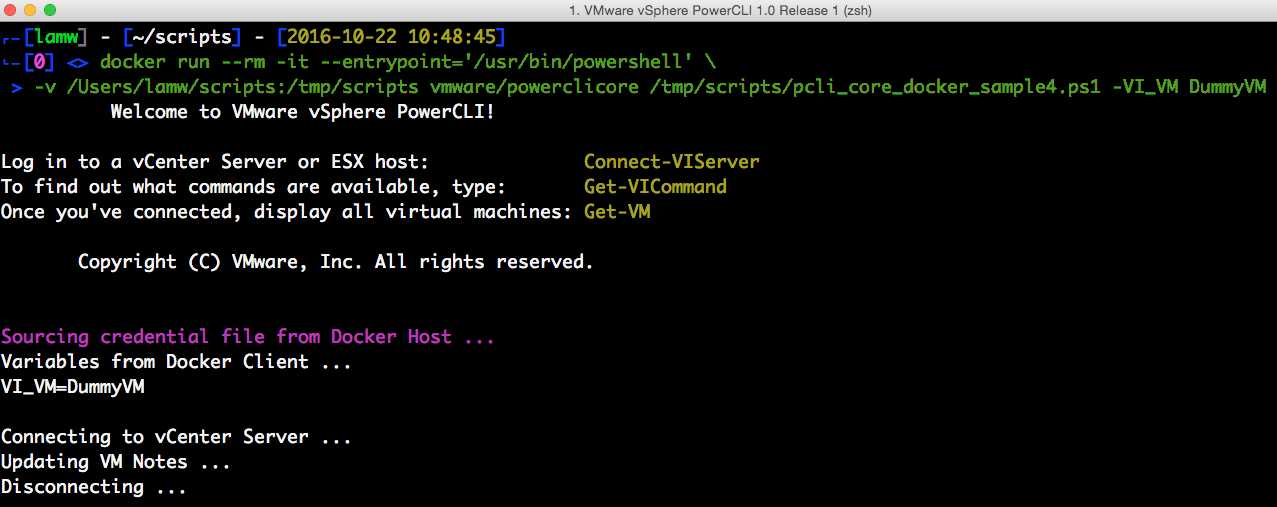
The last option is a nice compromise of the above in which you can continue leveraging your existing scripts but providing a better way of sending in things like credentials. As I mentioned before, Docker Volumes allows us to make directories and files available from our Docker Host to the Docker Container. This not only allows us to make our PowerCLI scripts available from within the container but it can also be used to provide access to other things like simply sourcing a credentials file. This method works on a per-individual basis running the container without any major modification to your existing scripts, you simply just need to source the credential file at the top of each script. Best of all, you are not exposing any sensitive information

Note: Some of you might be thinking about PowerCLI's credential store and seeing how that might be a better solution but currently today that has not been implemented yet in PowerCLI Core which is really leveraging Microsoft's credential store feature. Once that has been implemented in .NET Core, I am sure the PowerCLI team can then add that capability which is probably the recommended and preferred option both from a security perspective as well as Automation standpoint.

To exercise example 5, edit the credential.ps1 file and update it with your environmental credentials and run the following command:

docker run --rm -it \
-v /Users/lamw/scripts:/tmp/scripts vmware/powerclicore /tmp/scripts/pcli_core_docker_sample4.ps1 -VI_VM DummyVM

If executed correctly, the same variables in the credentials file will then be loaded into the PowerCLI script context and run the associated operations and exit.

run-powercli-scripts-using-powercli-core-docker-container-4
As you can see, there are many different ways in which you can run your existing PowerCLI scripts using the new PowerCLI Core Docker Container. Hopefully this article gives you a good summary along with some real world examples to consider. Given this is still an active area of development by the PowerCLI team, if you have any feedback or suggestions, please do leave a comment. I know the Alan (PM) as well as the engineers are very interested in hearing your feedback and seeing how else we could better improve the user experience of both PowerCLI Core as well as consuming PowerCLI Core through these various interfaces.

UPDATE (10/25/16) - It looks like PowerCLI Core Docker Container has been updated with my suggestion below, so you no longer need to specify the --entrypoint parameter 🙂

One finale note, right now the PowerCLI Core Docker Container does not automatically startup the Powershell process when it is launched. This is why we have the --entrypoint='/usr/bin/powershell' command appended to the Docker command-line. If you prefer to have Powershell start up which will automatically load the PowerCLI module, you can check out my updated PowerCLI Core Docker Container: lamw/powerclicore which uses the original as a base with one tiny modification. Perhaps this is something Alan and the team would consider making as a default in the future? 🙂

Categories // PowerCLI, vSphere Tags // Docker, PowerCLI, powershell

Quick Tip - How to disable the landing page for vCenter Server 5.x & 6.x?

07.25.2016 by William Lam // 2 Comments

The question of wanting to disable the default landing page for the vCenter Server is one that comes up infrequently. In fact, I probably see this maybe once or twice a year. However, when it does come up, it usually revolves around two topics: some sort of security risk and limiting users from obtaining software provided through these landing pages. In both case, simply disabling these landing pages will not solve either of these perceived issues.

I generally find these landing pages quite useful as they provide links to software downloads such as our legacy vSphere C# Client, SDK documentation as well as links to other interfaces to vCenter Server like the vSphere Web Client login, the datastore browser or the vSphere MOB. All of this information can be obtained through other official channels, so simply disabling this page does not really prevent users from downloading this content or accessing these interfaces.

On the second topic around security (which by no means am I an expert in), some customers feel that simply removing these default landing pages would some how prevent a security risk because a version of the software is no longer listed on that page? This is what some folks would call security through obscurity which just does not work. There are many different ways of identifying a version of vCenter Server and some of its components as well checking if the service is running. Simply removing these pages does little to nothing from stopping someone from retrieving this information using other methods. Instead, users should really be focusing how they are implementing security both in the software as well as the policies and processes they have in place which hopefully are inline with modern security practices.

In fact, by disabling some of these pages, you might even be hurting your overall customer experience depending on their familiarity with vCenter Server.

In any case, for those that are still inclined to disable these pages, below are the instructions on how to disable the various landing pages as I have not really seen this documented anywhere. The solution is actually quite simple which is to just rename the index files to something else which will prevent them from being loaded by the webserver.

Landing page for vCenter Server 5.x 

  • Windows VC: C:\ProgramData\VMware\VMware VirtualCenter\docRoot\index.html
  • VCSA: /etc/vmware-vpx/docRoot/index.html

disable-vcenter-server-landing-splash-page-0
Tomcat landing page for vCenter Server 5.x

  • Windows VC: C:\Program Files\VMware\Infrastructure\tomcat\webapps\ROOT\index.jsp
  • VCSA: /usr/lib/vmware-vpx/tomcat/webapps/tomcat/webapps/ROOT/index.jsp

disable-vcenter-server-landing-splash-page-1
Landing page for vCenter Server 6.x 

  • Windows VC: C:\ProgramData\VMware\VMware VirtualCenter\docRoot\index.html
  • VCSA: /etc/vmware-vpx/docRoot/index.html

disable-vcenter-server-landing-splash-page-2
Landing page for Platform Services Controll (vSphere 6.x)

  • Windows VC: C:\ProgramData\VMware\vCenterServer\runtime\VMwareSTSService\webapps\websso\WEB-INF\views\index.jsp
  • VCSA: /usr/lib/vmware-sso/vmware-sts/webapps/websso/WEB-INF/views/index.jsp

disable-vcenter-server-landing-splash-page-3

Categories // vSphere Tags // landing page, splash page, tcServer, vCenter Server, vcenter server appliance, vSphere 5.1, vSphere 5.5, vSphere 6.0

  • « Previous Page
  • 1
  • …
  • 63
  • 64
  • 65
  • 66
  • 67
  • …
  • 110
  • Next Page »

Search

Thank Author

Author

William is Distinguished Platform Engineering Architect in the VMware Cloud Foundation (VCF) Division at Broadcom. His primary focus is helping customers and partners build, run and operate a modern Private Cloud using the VMware Cloud Foundation (VCF) platform.

Connect

  • Bluesky
  • Email
  • GitHub
  • LinkedIn
  • Reddit
  • RSS
  • Twitter
  • Vimeo

Recent

  • Quick Tip: How to Identify Which Kubernetes Cluster Owns a vSphere Container Volume (PV) 06/25/2026
  • What Host Lifecycle Operations Are Available after Importing vCenter into VCF 9.x Fleet? 06/24/2026
  • VCF 9.1 - Enabling High Availability for a Small VCF Management Services (VCFMS) Deployment 06/22/2026
  • Clarifying Minimum Required ESX Hosts for VCF Deployments 06/18/2026
  • VCF 9.1 - Auditing VCF Management Services (VCFMS) IP Pool Usage  06/17/2026
Privacy & Cookies: This site uses cookies. By continuing to use this website, you agree to their use.

To find out more, including how to control cookies, see here: Cookie Policy

Copyright WilliamLam.com © 2026

Loading Comments...