WilliamLam.com

  • About
    • About
    • Privacy
  • VMware Cloud Foundation
    • VMware Cloud Foundation 9.1
    • VMware Cloud Foundation 9.0
  • VKS
  • Homelab
    • Hardware Options
    • Hardware Reviews
    • Lab Deployment Scripts
    • Nested Virtualization
    • Homelab Podcasts
  • VMware Nostalgia
  • Apple

Want to issue a VAAI UNMAP operation using the vSphere Web Client?

09.18.2014 by William Lam // 3 Comments

Recently, I have seen several requests from both customers and partners wanting to be able to run the VAAI UNMAP operation from within the vSphere Web Client. For those of you not familiar with the VAAI UNMAP operation, I recommend you check out this blog post by my colleague Cormac Hogan. Today, the only way to issue the UNMAP operation is by using ESXCLI either remotely or in the ESXi Shell. There is currently not a vSphere API for this operation and therefore it would be difficult to build a native vSphere Web Client Plugin to provide this functionality.

Having said that, one way to provide this capability is through the use of a vCenter Orchestrator (vCO) Workflow which can remotely execute an ESXCLI command whether that is going through ESXCLI using a Linux jump box or through PowerCLI using a Windows jump box. Starting with vSphere 5.5, you can now extend the vSphere Web Client and attach a vCO Workflow to a vSphere Object and be able to execute the workflow right from the vSphere Web Client. This is great if you are already using vCO, but for those that are not, it can be somewhat complex to setup along with a steep learning curve depending on your experience.

Today, there was an exciting announcement from my Automation buddy, Alan Renouf for a new VMware Fling called PowerActions for the vSphere Web Client. This new Fling allows you to easily extend the vSphere Web Client in the following ways:

  • Access a PowerCLI console directly in the vSphere Web Client
  • Ability to run a context aware PowerCLI script directly from the vSphere Web Client

The prerequisite for setting up PowerActions is no different than vCO calling a PowerCLI script, you just need a Windows "jump-box" that has PowerCLI installed along with PowerActions. The added benefit, is that you do need to setup another piece of infrastructure like vCO if you are not already using it. This made setting up PowerActions extremely easy to setup and even I was able get it up and running in under 5minutes (minus a quick RTFM moment :)).

Given the number of inquiries regarding VAAI UNMAP operation via the vSphere Web Client, I thought that would be a great use case for my first PowerActions script! Below are the instructions on creating the VAAI UNMAP script for PowerActions:

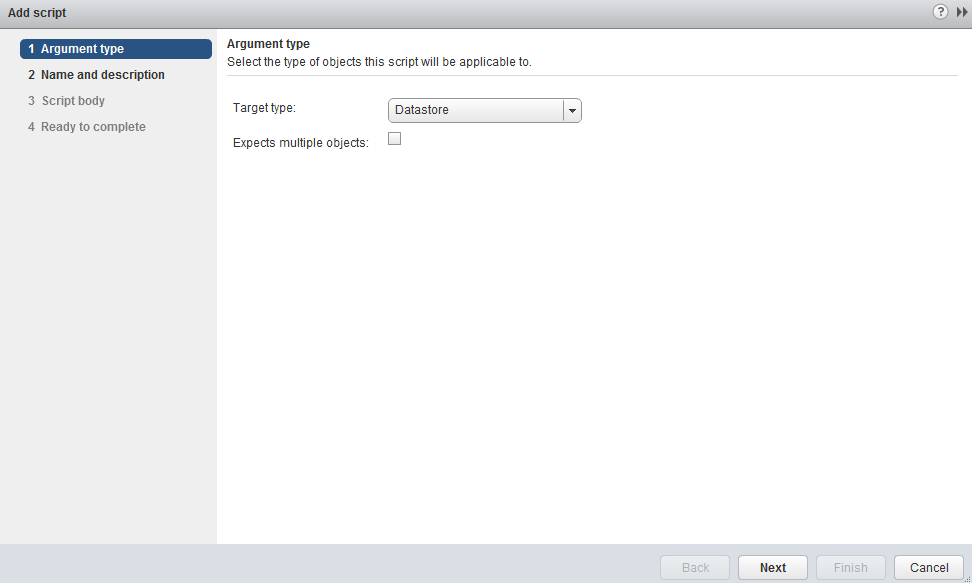
Step 1 - Click on the PowerCLI Scripts option on the left hand side of the Object Navigator and then click on the "New Script" Icon. Select Datastore as the context aware object for the script.

unmap-command-in-vsphere-web-client-0
Step 2 - Provide a name and description for the script. Also make sure to select "Action".

unmap-command-in-vsphere-web-client-1
Step 3 - Copy and paste the following script from https://github.com/lamw/vghetto-scripts/blob/master/powershell/unmap-poweraction.ps1 inside the script window and then save the script. What the script does is takes the Datastore object and retrieves a list of ESXi hosts that has access to the Datastore and then randomly selects one of the host. This is required because ESXCLI operations on a per host level and we use that information to pass into Get-EsxCli cmdlet to issue the VAAI UNMAP operation.

Step 4 - To test the script, you just need to right click on a VMFS Datastore and click on PowerCLI->Execute a Script

unmap-command-in-vsphere-web-client-2
Note: Please be aware of the impact when running a UNMAP operation, you may want to run this on a non-production datastore for testing purposes or during off hours when your workload may not be as busy.

Step 5 - Select the VAAI UNMAP script you just created and once selected and you will be prompted to specify the number of VMFS blocks to unmap per iteration which is exactly the same input when manually ESXCLI.

Screen Shot 2014-09-17 at 10.30.09 PM
At this point, if everything was successful the VAAI UNMAP operation should begin and you can tail /var/log/hostd.log to see the UNAMP operation. Once completed, you should see the prompt return true.

As you can see, it was extremely easy to create my own PowerAction script that expose new functionality and making it available within the vSphere Web Client. I think this is going to be a pretty popular Fling and remember if this is something you would like to see officially in the product, be sure to leave a comment on the PowerAction for vSphere Web Client Fling page, product managers are listening! The only feedback I have is that I would love to see this get extended beyond just PowerCLI and into a generic script extension framework, just imagine the possibilities!

Categories // ESXi, vSphere Tags // esxcli, PowerCLI, unmap, vaai, vSphere, vsphere web client

How to run Qemu & KVM on ESXi?

09.17.2014 by William Lam // 4 Comments

Last week I was asked whether ESXi could run the KVM hypervisor as a Virtual Machine (often referred to as Nested Virtualization). I personally have not used KVM before or run it on top of ESXi, but I have heard of many folks successfully virtualizing KVM as a Virtual Machine on top of ESXi. I figure since I have already written several articles on Nesting VMware ESXi, Microsoft Hyper-V and Xen on top of ESXi, I might as well also take a look at KVM!

Disclaimer: Nested Virtualization is not supported by VMware, please use at your own risk.

As mentioned already, I have not used KVM before and one thing I wanted to understand before trying to run it as a Virtual Machine is what the difference is between Qemu and KVM as I have heard both these terms used in-conjunction before. I found this post to be quite helpful in helping me understand the differences between Qemu, KQemu and KVM. I recommend a read if you are new to Qemu or KVM like I am.

From the article above, we now see that you can run either Qemu as a standalone system or KVM which is an accelerator that runs on top of Qemu. With this, I will now demonstrate how you can run Qemu as well as KVM as Virtual Machine on top of ESXi. In the example below, I have selected the latest Ubuntu release (14.04.1) to run both Qemu and KVM.

[Read more...]

Categories // ESXi, Nested Virtualization, vSphere Tags // ESXi, kqemu, kvm, nested, nested virtualization, qemu

How to build custom ESXi ISO for Apple Mac Mini?

09.11.2014 by William Lam // 43 Comments

For those of you who own an Apple Mac Mini 6,2 may recall some of the, lets call them "challenges" on getting ESXi to run on the Mini. These challenges range from known SMC issues from Apple to missing or updated Broadcom tg3 network drivers. Though there workarounds for these issue, the process was quite complex. I took it upon myself to help simplify it by building custom ESXi ISO's for most of the major ESXi releases so that users could simply install ESXi as they normally would and by-pass all the complexity.

This has worked for the majority of folks but I have received several requests for those that may not be comfortable with just downloading a random ISO on the internet, which I can fully understand. The other reason is that some folks would like to build their own custom ISO and include other drivers/packages and others are just interested in the process. This has been on my to-do list for awhile but it was finding the time to document the process but also I normally like to take it a step further and see how I can make it even more simple 🙂

Disclaimer: Running ESXi on an Apple Mac Mini is not officially supported by VMware, please use at your own risk

With the recent release of vSphere 5.5 Update 2, I thought this would be the perfect opportunity to show how you can build your own custom ESXi ISO to run on the Apple Mac Mini 6,2.

Note: Earlier versions of Mac Mini should work fine for the most part without additional modifications.

Before I get started, I would also like to mention that several of the "challenges" such as having an updated Broadcom tg3 drivers have been fixed in the latest ESXi 5.5 Update 2 release, so out of the box you will be able to see the on-board network device working as expected and Ethernet Thunderbolt will also be functional if you are using that device with no additional drivers being required. I have been able to successfully install the default out of the box ESXi 5.5 Update 2 ISO from VMware on my Apple Mac Mini 5,3 without any additional changes.

Here is the process for building your own custom ESXi ISO for your Mac Mini:

Step 1 - Download the ESXi ISO you wish to work with

Step 2 - You will need access to a Linux system (recommend CentOS) that has mkisofs utlity, which is used to author an ISO

Step 3 - Download my custom.tgz which will automatically handle the SMC issue for Apple Mac Mini 6,2

Step 4 - Download my ghettotize-esxi-iso.sh which is a shell script that will automatically take an ESXi ISO and author a new ISO containing the fixes. The script is pretty straight forward and you can take a look at the script for all the details.

Here is an example of running the script against the latest ESXi 5.5 Update 2 ISO:

build-custom-esxi-iso-for-mac-min-0
As you can see at the end of the script, you should get a new authored ISO with a -NEW in the filename:

build-custom-esxi-iso-for-mac-min-1
Once you have the new ISO, you can then take that and load that onto a USB device. I like using unetbootin which is a handy utility that is supported on all platforms and creates a bootable USB device with the ISO provided. As you can see the process is pretty straight forward and though it took a bit of "experimentation" on my end to make it completely seamless, you can see there is too much to the process in general.

Categories // Apple, ESXi, vSphere Tags // apple, ESXi, iso, mac mini, smc, vSphere

  • « Previous Page
  • 1
  • …
  • 129
  • 130
  • 131
  • 132
  • 133
  • …
  • 154
  • Next Page »

Search

Thank Author

Author

William is Distinguished Platform Engineering Architect in the VMware Cloud Foundation (VCF) Division at Broadcom. His primary focus is helping customers and partners build, run and operate a modern Private Cloud using the VMware Cloud Foundation (VCF) platform.

Connect

  • Bluesky
  • Email
  • GitHub
  • LinkedIn
  • Reddit
  • RSS
  • Twitter
  • Vimeo

Recent

  • VCF 9.1 - Configuring Harbor to use VCF Identity Broker (IDB) for External Identity Federation 08/19/2026
  • Quick Tip: The Fastest Way to Clear Partitions for ESX Reinstallation 08/15/2026
  • Quick Tip: Reducing High CPU Utilization in VCF Automation (VCFA) on AMD Zen4/Zen5 CPUs 08/12/2026
  • VCF 9.1 - Quick Tip: Optimized Workflow for Configuring Distributed Transit Gateway (DTGW) with NSX Virtual Network Appliance (VNA) 08/11/2026
  • Quick Tip: Selective ESX Host Patching in VCF 9.1 08/10/2026
Privacy & Cookies: This site uses cookies. By continuing to use this website, you agree to their use.

To find out more, including how to control cookies, see here: Cookie Policy

Copyright WilliamLam.com © 2026

Loading Comments...