WilliamLam.com

  • About
    • About
    • Privacy
  • VMware Cloud Foundation
    • VMware Cloud Foundation 9.1
    • VMware Cloud Foundation 9.0
  • VKS
  • Homelab
    • Hardware Options
    • Hardware Reviews
    • Lab Deployment Scripts
    • Nested Virtualization
    • Homelab Podcasts
  • VMware Nostalgia
  • Apple

VSAN Management 6.2 API Quick Reference

05.31.2016 by William Lam // 2 Comments

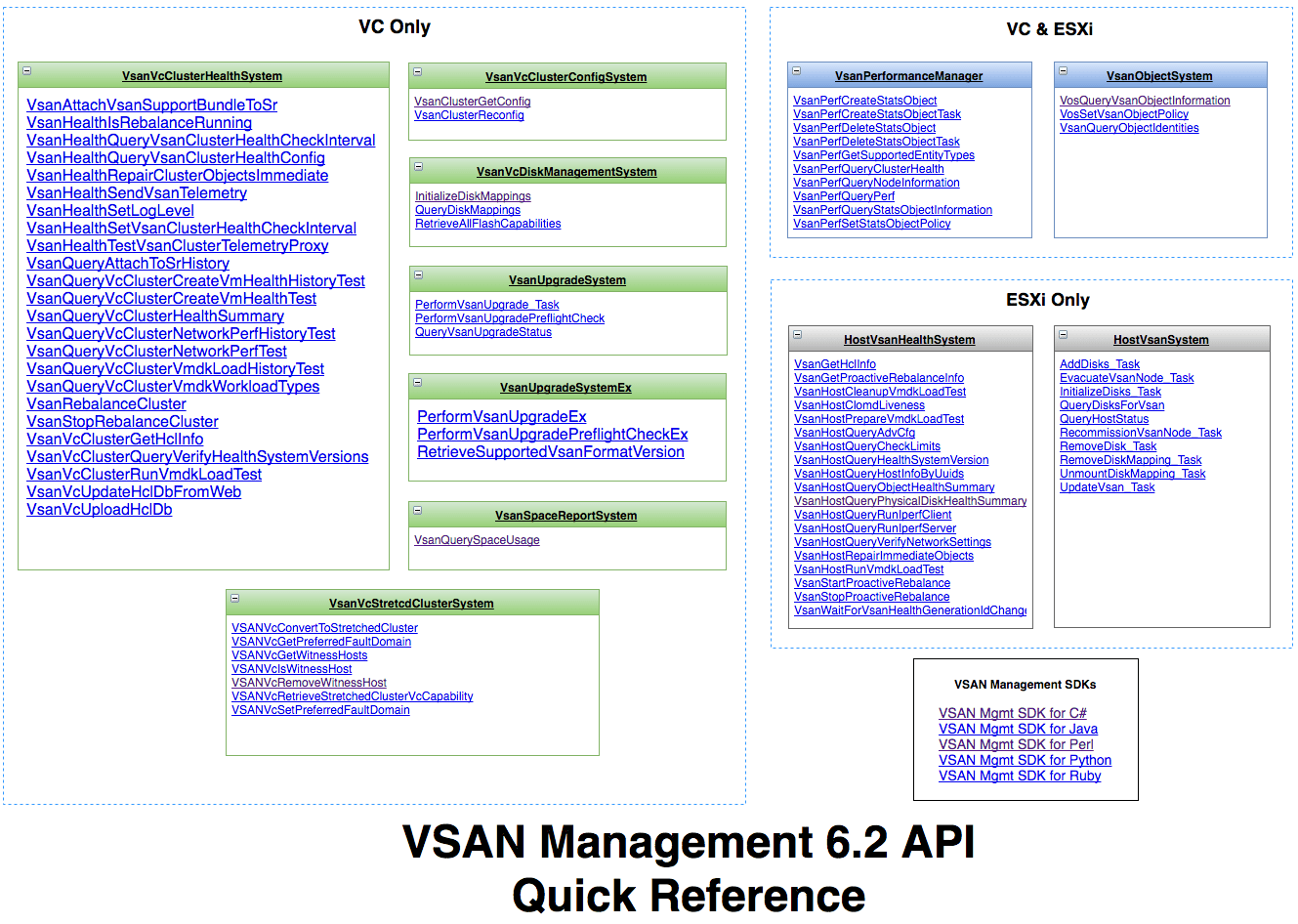
With the release of VSAN 6.2 (vSphere 6.0 Update 2), a new VSAN Management API has been introduced which covers all aspects of VSAN functionality including: complete lifecycle (install, upgrade, patch), monitoring (including VSAN Observer capabilities), configuration and troubleshooting. Although there is a well documented VSAN Management API Reference Guide which you can navigate around, I personally find it useful to be able to have a quick reference to all the APIs in on place which I can easily search and reference. This is especially true when I am learning about a new API.

With that, I have created a "Quick Reference" of the new VSAN 6.2 Management API. You can find a screenshot below as well as the direct link to the quick reference. I used Draw.io to create the diagram but it is not just a static image of all the new Managed Objects and their respective methods, but each API method also links back to the VSAN Management API Reference Guide and best of all, because it is in HTML, you can easily search in the quick reference itself.

I initially had created this for myself, but I figure that others could also benefit. I am curious if others find this useful and whether we should have something like this as part of the official VSAN Management API Reference Guide?

VSAN Management 6.2 API Quick Reference: https://s3.amazonaws.com/virtuallyghetto-download/vsanapi.html

vsan62-management-api-quick-reference

Categories // ESXi, VSAN Tags // Virtual SAN, VSAN, VSAN 6.2, vSphere API

Customizing the ESXi DCUI to show number of VMs

05.24.2016 by William Lam // 7 Comments

Last week there was a question that was posted internally asking if it was possible to customize the ESXi DCUI screen to include the number of Virtual Machines? Although there is nothing out of the box, you can in fact add add almost anything to the DCUI screen by modifying the /etc/vmware/welcome configuration file which I had blogged about several years back on adding a splash of color to the ESXi DCUI. There was even a recent VMware Fling that provides a VIB that applies a variety of DoD STIG implementations, one of which was to update the DCUI screen with some specific text.

However, instead of having to manually edit the file directly on the ESXi host, we also provide an API in the way of an ESXi Advanced Setting called Annotations.WelcomeMessage which can then be updated remotely using anyone of the vSphere SDK/CLIs that you are familiar with.

Here is an example PowerCLI snippet to connect to an ESXi host (you can also do this by connecting to vCenter Server) and extracting all Virtual Machines residing on the host and then updating the DCUI screen with the total number of VMs as well as the names of each VM. Obviously, if you have more than 10 or so VMs, it may not make much sense to actually list them as it will just run off the screen, but this just gives you an example of some of the things you can do leveraging the vSphere API or any other data that you might have at your disposal.

[Read more...]

Categories // ESXi Tags // dcui, ESXi, PowerCLI, vSphere API

ESXi on the new Intel NUC Skull Canyon

05.21.2016 by William Lam // 62 Comments

Earlier this week I found out the new Intel NUC "Skull Canyon" (NUC6i7KYK) has been released and have been shipping for a couple of weeks now. Although this platform is mainly targeted at gaming enthusiast, there have also been a lot of anticipation from the VMware community on leveraging the NUC for a vSphere based home lab. Similiar to the 6th Gen Intel NUC system which is a great platform to run vSphere as well as VSAN, the new NUC includes a several new enhancements beyond the new aesthetics. In addition to the Core i7 CPU, it also includes a dual M.2 slots (no SATA support), Thunderbolt 3 and most importantly, an Intel Iris Pro GPU a Thunderbolt 3 Controller. I will get to why this is important ...
intel_nuc_skull_canyon_1
UPDATE (05/26/16) - With some further investigation from folks like Erik and Florian, it turns out the *only* device that needs to be disabled for ESXi to successfully boot and install is the Thunderbolt Controller. Once ESXi has been installed, you can re-enable the Thunderbolt Controller and Florian has also written a nice blog post here which has instructions as well as screenshots for those not familiar with the Intel NUC BIOs.

UPDATE (05/23/16) - Shortly after sharing this article internally, Jason Joy, a VMware employee shared the great news that he has figured out how to get ESXi to properly boot and install. Jason found that by disabling unnecessary hardware devices like the Consumer IR/etc in the BIOS, it allowed the ESXi installer to properly boot up. Jason was going to dig a bit further to see if he can identify the minimal list of devices that needed to be disabled to boot ESXi. In the meantime, community blogger Erik Bussink has shared the list of settings he has applied to his Skull Canyon to successfully boot and install latest ESXi 6.0 Update 2 based on the feedback from Jason. Huge thanks to Jason for quickly identifying the workaround and sharing it with the VMware community and thanks to Erik for publishing his list. For all those that were considering the new Intel NUC Skull Canyon for a vSphere-based home lab, you can now get your ordering on! 😀

Below is an except from his blog post Intel NUC Skull Canyon (NUC6I7KYK) and ESXi 6.0 on the settings he has disabled:

BIOS\Devices\USB

  • disabled - USB Legacy (Default: On)
  • disabled - Portable Device Charging Mode (Default: Charging Only)
  • not change - USB Ports (Port 01-08 enabled)

BIOS\Devices\SATA

  • disabled - Chipset SATA (Default AHCI & SMART Enabled)
  • M.2 Slot 1 NVMe SSD: Samsung MZVPV256HDGL-00000
  • M.2 Slot 2 NVMe SSD: Samsung MZVPV512HDGL-00000
  • disabled - HDD Activity LED (Default: On)
  • disabled - M.2 PCIe SSD LEG (Default: On)

BIOS\Devices\Video

  • IGD Minimum Memory - 64GB (Default)
  • IGD Aperture Size - 256 (Default)
  • IGD Primary Video Port - Auto (Default)

BIOS\Devices\Onboard Devices

  • disabled - Audio (Default: On)
  • LAN (Default)
  • disabled - Thunderbolt Controller (Default is Enabled)
  • disabled - WLAN (Default: On)
  • disabled - Bluetooth (Default: On)
  • Near Field Communication - Disabled (Default is Disabled)
  • SD Card - Read/Write (Default was Read)
  • Legacy Device Configuration
  • disabled - Enhanced Consumer IR (Default: On)
  • disabled - High Precision Event Timers (Default: On)
  • disabled - Num Lock (Default: On)

BIOS\PCI

  • M.2 Slot 1 - Enabled
  • M.2 Slot 2 - Enabled
  • M.2 Slot 1 NVMe SSD: Samsung MZVPV256HDGL-00000
  • M.2 Slot 2 NVMe SSD: Samsung MZVPV512HDGL-00000

Cooling

  • CPU Fan HEader
  • Fan Control Mode : Cool (I toyed with Full fan, but it does make a lot of noise)

Performance\Processor

  • disabled Real-Time Performance Tuning (Default: On)

Power

  • Select Max Performance Enabled (Default: Balanced Enabled)
  • Secondary Power Settings
  • disabled - Intel Ready Mode Technology (Default: On)
  • disabled - Power Sense (Default: On)
  • After Power Failure: Power On (Default was stay off)

Over the weekend, I had received several emails from folks including Olli from the nucblog.net (highly recommend a follow if you do not), Florian from virten.net (another awesome blog which I follow & recommend) and few others who have gotten their hands on the "Skull Canyon" system. They had all tried to install the latest release of ESXi 6.0 Update 2 including earlier versions but all ran into a problem while booting up the ESXi installer.

The following error message was encountered:

Error loading /tools.t00
Compressed MD5: 39916ab4eb3b835daec309b235fcbc3b
Decompressed MD5: 000000000000000000000000000000
Fatal error: 10 (Out of resources)

intel_nuc_skull_canyon_2
Raymond Huh was the first individual who had reach out to me regarding this issue and then shortly after, I started to get the same confirmations from others as well. Raymond's suspicion was that this was related to the amount of Memory-Mapped I/O resources being consumed by the Intel Iris Pro GPU and does not leave enough resources for the ESXi installer to boot up. Even a quick Google search on this particular error message leads to several solutions here and here where the recommendation was to either disable or reduce the amount of memory for MMIO within the system BIOS.

Unfortunately, it does not look like the Intel NUC BIOS provides any options of disabling or modifying the MMIO settings after Raymond had looked which including tweaking some of the video settings. He currently has a support case filed with Intel to see if there is another option. In the mean time, I had also reached out to some folks internally to see if they had any thoughts and they too came to the same conclusion that without being able to modify or disable MMIO, there is not much more that can be done. There may be a chance that I might be able to get access to a unit from another VMware employee and perhaps we can see if there is any workaround from our side, but there are no guarantees, especially as this is not an officially supported platform for ESXi. I want to thank Raymond, Olli & Florian for going through the early testing and sharing their findings thus far. I know many folks are anxiously waiting and I know they really appreciate it!

For now, if you are considering purchasing or have purchased the latest Intel NUC Skull Canyon with the intention to run ESXi, I would recommend holding off or not opening up the system. I will provide any new updates as they become available. I am still hopeful  that we will find a solution for the VMware community, so crossing fingers.

Categories // ESXi, Home Lab, Not Supported Tags // ESXi, Intel NUC, Skull Canyon

  • « Previous Page
  • 1
  • …
  • 97
  • 98
  • 99
  • 100
  • 101
  • …
  • 154
  • Next Page »

Search

Thank Author

Author

William is Distinguished Platform Engineering Architect in the VMware Cloud Foundation (VCF) Division at Broadcom. His primary focus is helping customers and partners build, run and operate a modern Private Cloud using the VMware Cloud Foundation (VCF) platform.

Connect

  • Bluesky
  • Email
  • GitHub
  • LinkedIn
  • Reddit
  • RSS
  • Twitter
  • Vimeo

Recent

  • VCF 9.1 - Configuring Harbor to use VCF Identity Broker (IDB) for External Identity Federation 08/19/2026
  • Quick Tip: The Fastest Way to Clear Partitions for ESX Reinstallation 08/15/2026
  • Quick Tip: Reducing High CPU Utilization in VCF Automation (VCFA) on AMD Zen4/Zen5 CPUs 08/12/2026
  • VCF 9.1 - Quick Tip: Optimized Workflow for Configuring Distributed Transit Gateway (DTGW) with NSX Virtual Network Appliance (VNA) 08/11/2026
  • Quick Tip: Selective ESX Host Patching in VCF 9.1 08/10/2026
Privacy & Cookies: This site uses cookies. By continuing to use this website, you agree to their use.

To find out more, including how to control cookies, see here: Cookie Policy

Copyright WilliamLam.com © 2026

Loading Comments...